
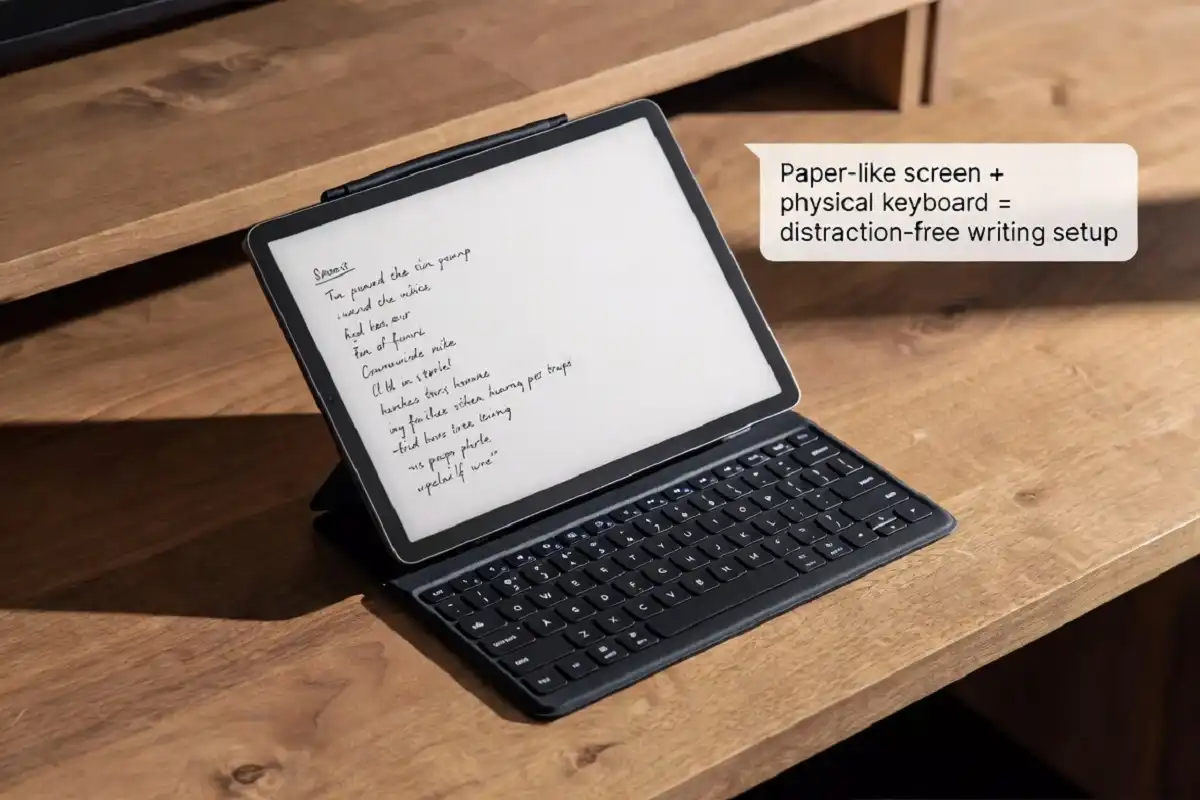
If you want to write more and scroll less, an e ink tablet with keyboard case might be exactly what you need. It gives you the calm, paper-like screen of an e ink display combined with a physical keyboard for faster, comfortable typing. No notifications. No eye strain. Just focused work.
An e ink tablet with keyboard case is a digital writing tool that pairs a low-glare, paper-textured e ink screen with a physical keyboard attachment. It works best for writing, note-taking, drafting, and reading. The top options in 2026 include the reMarkable 2, Boox Note Air series, and Kindle Scribe with compatible third-party keyboard cases.
What Is an E Ink Tablet with Keyboard Case?
An e ink tablet is a device built around electronic paper display technology. The screen only uses power when the image changes, which is why battery life on these devices often lasts weeks instead of hours.
When you add a keyboard case, you turn that tablet into a compact writing machine. The case attaches physically to the device and typically includes a Bluetooth or pogo-pin keyboard built into the cover.
The result is something between a traditional paper notebook and a laptop. You get the low-glare, easy-on-the-eyes screen of e ink paper, plus the speed and accuracy of a physical keyboard.
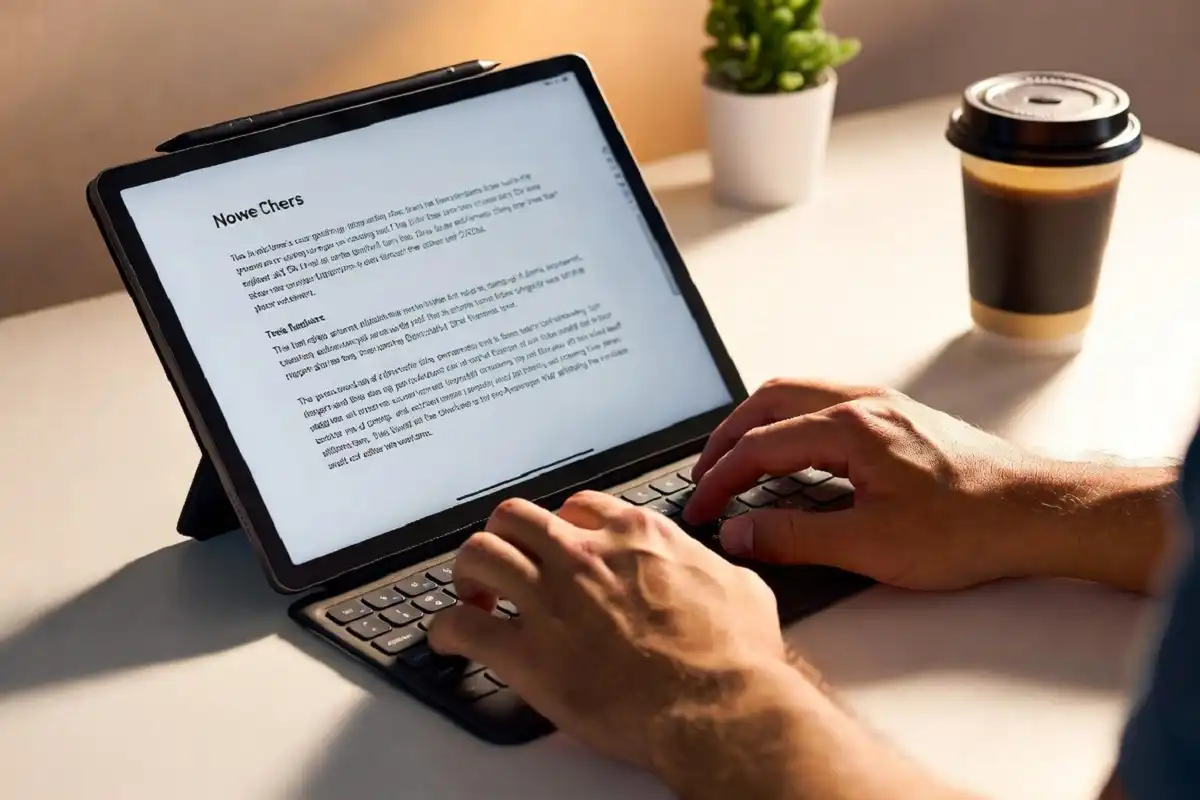
I find this combination especially useful for long writing sessions. My eyes do not feel tired after hours of work the way they do with a regular LCD screen.
Why Writers and Professionals Choose This Setup
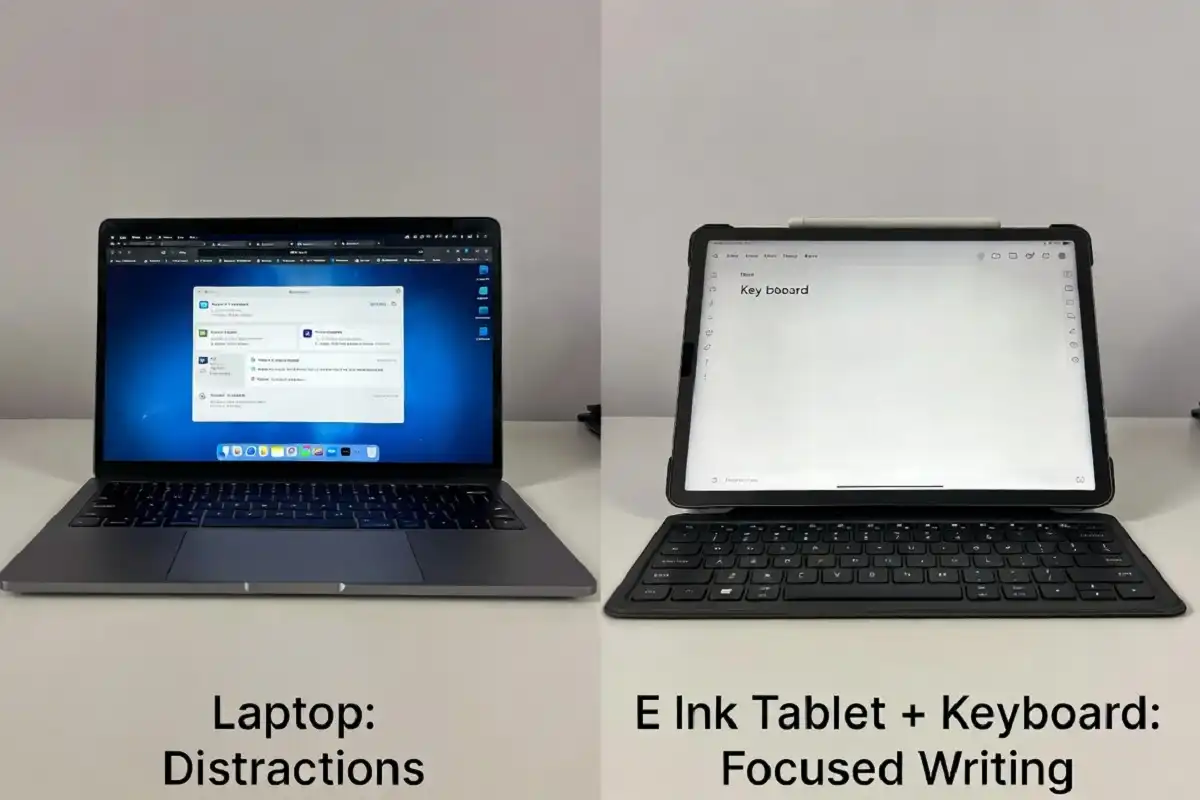
Most people who look for an e ink tablet with keyboard case are trying to solve a specific problem: distraction.
A regular laptop or tablet constantly pulls your attention. Email previews pop up. Social feeds refresh. Apps ping you. The result is broken focus and slower, lower-quality writing.
An e ink writing tablet removes all of that. Most e ink devices run stripped-down operating systems or custom software designed purely for writing and reading. Add a keyboard, and you have a portable, distraction-free drafting tool that fits in a bag.
This setup also works well for:
- Students who take lecture notes and write essays
- Authors and journalists drafting long-form content
- Researchers who annotate documents while writing notes
- Professionals who need a lightweight, travel-friendly work tool
Best E Ink Tablets That Work with a Keyboard Case
Not every e ink device supports a keyboard case. Some have official keyboard accessories. Others work with universal Bluetooth keyboards and third-party folio-style cases. Here is what works best right now.
reMarkable 2 with Type Folio
The reMarkable 2 is one of the most well-known writing tablets on the market. reMarkable makes an official keyboard accessory called the Type Folio. It clicks directly onto the bottom of the device and connects without Bluetooth pairing.
The Type Folio adds a full QWERTY keyboard with a comfortable key travel. It also doubles as a protective cover for the screen. The combined setup gives you an e ink tablet with keyboard case that feels like a very thin, lightweight writing laptop.
The reMarkable 2’s software is intentionally minimal. You get handwriting, typed notes, PDF annotation, and cloud sync. Nothing more. That is by design.
Who should choose this: Writers, academics, and professionals who want the cleanest possible writing tool and do not need Android apps.
For more on the reMarkable lineup, the reMarkable 2 full feature breakdown covers what this device does well and where it falls short.
Boox Note Air 3 C with Keyboard Case
The Boox Note Air series runs full Android, which means you can install word processors, writing apps, note-taking tools, and cloud sync apps. It connects to any Bluetooth keyboard case that fits a 10-inch tablet form factor.
You will not find an official keyboard case from Boox. However, the Note Air 3 C has a standard tablet shape, so universal folio keyboard cases designed for 10-inch tablets fit reasonably well.
The color e ink screen on the Note Air 3 C is a bonus for users who annotate color-coded documents. Color rendering on e ink is still muted compared to LCD, but it is good enough to be useful.
Who should choose this: Users who want app flexibility along with an e ink screen and are comfortable sourcing a third-party keyboard case.
Kindle Scribe with Bluetooth Keyboard
Amazon’s Kindle Scribe is primarily a reading and handwriting device. It does not run Android apps and has limited writing software. However, it works with Bluetooth keyboards for basic text input.
A slim Bluetooth keyboard paired with a protective folio cover creates a functional e ink tablet with keyboard case setup, though the Kindle Scribe’s software limits what you can do with keyboard input.
Who should choose this: Readers who occasionally want to type notes or annotations and already own a Kindle in the ecosystem.
Onyx Boox Tab Ultra C Pro
This is the most capable option for users who want a full-featured e ink tablet with keyboard case. It has a 10.3-inch color e ink screen, runs Android 12, and supports any standard Bluetooth keyboard case.
The Tab Ultra C Pro handles word processing, web browsing, email, and PDF annotation. It is not as minimal as the reMarkable 2, but it is significantly more flexible.
Who should choose this: Power users who want Android app support plus the e ink experience.
How to Choose the Right E Ink Tablet with Keyboard Case
There are a few things worth getting clear before you buy.
1. Official vs. Third-Party Keyboard Cases
The reMarkable 2 Type Folio is the only official e ink tablet with keyboard case combination on the market right now. Every other option requires pairing a third-party or universal Bluetooth keyboard case with the device.
Official cases always fit better and have fewer connectivity issues. Third-party cases vary in quality. If you go the third-party route, check that the keyboard connects via Bluetooth 5.0 or higher and that the case dimensions match your specific tablet model.
2. Operating System and App Support
This is a bigger decision than most people realize.
The reMarkable 2 runs a proprietary OS. It is locked down by design. You cannot install apps. The software does one thing extremely well: distraction-free writing and document management.
Boox devices and the Tab Ultra C Pro run Android. You can install Google Docs, Notion, Microsoft Word, and hundreds of other apps. The experience is more versatile but also less pure in terms of focus.
Think about what you actually need. If you mostly want to write, draft, and annotate PDFs, a locked-down device is often better because it removes the temptation to do everything else. If you need app flexibility, Android e ink is the right direction.
3. Screen Size
Most e ink tablets that pair well with keyboard cases are 10 to 13 inches. Smaller screens feel cramped when you are typing. Larger screens are harder to carry.
The sweet spot for writing is 10.3 to 13.3 inches. The reMarkable 2 sits at 10.3 inches. The reMarkable Paper Pro is 11.8 inches, which gives a bit more room when typing.
4. Typing Feel and Key Travel
A keyboard case is only as good as its keyboard. Shallow, membrane-style keys with almost no travel feel mushy and slow you down over a full day of writing.
Look for keyboard cases with at least 1.5mm of key travel. Check whether the keyboard requires a separate charge or draws power from the tablet. Keyboards with their own battery are generally more reliable.
5. Battery Life
One of the biggest advantages of e ink is long battery life. A typical e ink tablet lasts two to four weeks on a single charge for reading and handwriting. Typed text is lighter on the battery than rendering handwriting.
The keyboard case itself adds a separate power requirement if it is not a pogo-pin connection. Make sure you understand how to charge both components before buying.
Setting Up Your E Ink Tablet with Keyboard Case
Once you have your device and case, setup is straightforward.
For pogo-pin cases like the reMarkable Type Folio, you simply snap the case onto the connector port. The device recognizes the keyboard automatically. No pairing needed.
For Bluetooth keyboard cases, you turn on the keyboard’s pairing mode, go to Bluetooth settings on your tablet, and connect. On Android-based e ink devices, this works exactly like pairing a Bluetooth keyboard to any Android tablet.
After connecting, test every key. Some universal cases have slightly different key layouts than you expect. It helps to spend 10 minutes typing before your first real writing session to adjust.
If you use the reMarkable 2 with the Type Folio, I recommend turning on the auto-rotate setting so the screen shifts correctly when you flip between keyboard and stylus mode.
What You Can and Cannot Do with a Keyboard on an E Ink Tablet
Setting realistic expectations here matters.
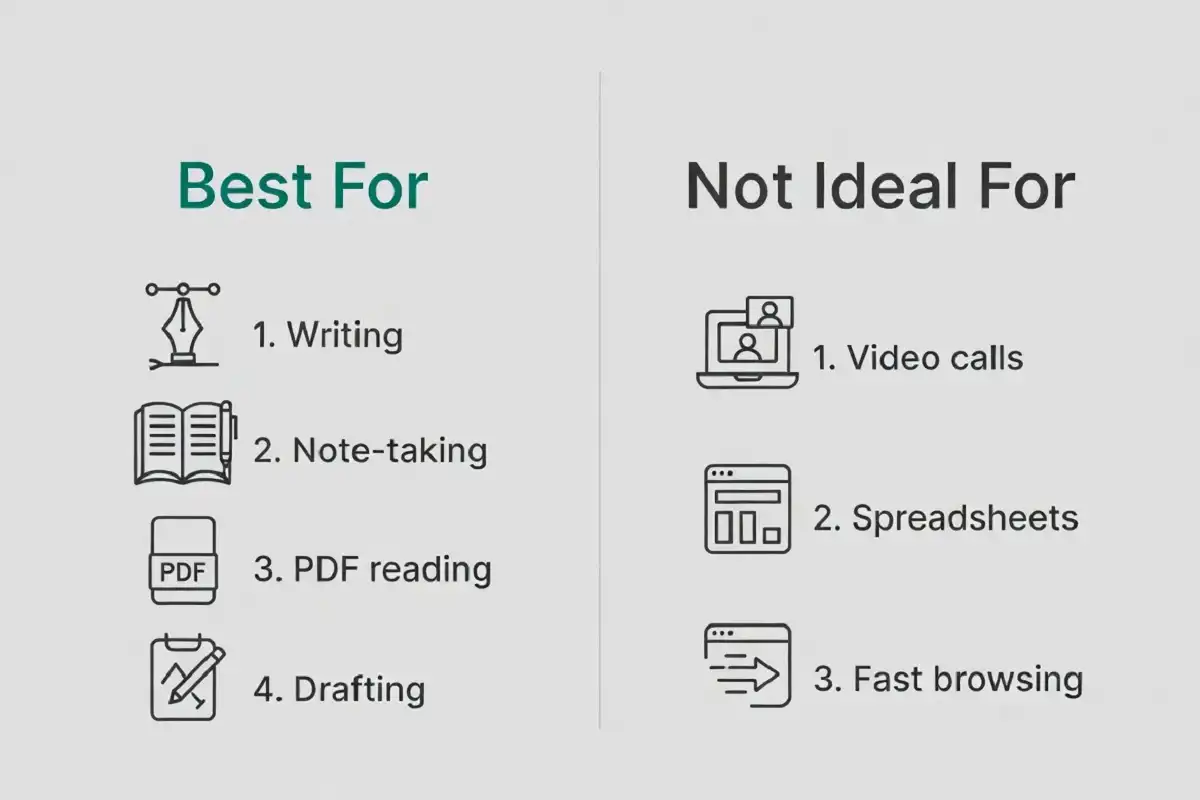
What works well:
- Writing drafts, essays, articles, and journals
- Taking notes in text format
- Annotating PDFs with typed comments
- Reviewing and editing documents
- Replying to email (on Android e ink tablets)
What does not work well:
- Fast-paced tasks requiring quick screen refreshes (e ink has noticeable ghosting at speed)
- Spreadsheets or complex formatting work
- Graphic design or image editing
- Video calls or media consumption
- Real-time collaboration that requires constant updates
The e ink screen refresh rate is slower than LCD. Most e ink tablets refresh at 10 to 30 frames per second in their fastest modes, compared to 60 to 120 fps on a standard tablet. For writing, this is completely fine. For anything requiring fast visuals, it is not the right tool.
reMarkable Paper Pro as an Alternative
If you want a bigger, more refined version of the reMarkable experience, the reMarkable Paper Pro is worth considering. It has an 11.8-inch screen with a color-tinted display mode and improved writing feel.
The Type Folio keyboard case also works with the Paper Pro, making it one of the most polished e ink tablet with keyboard case setups available.
I think of the Paper Pro as the version for people who write seriously and want every detail to feel right. The larger screen gives you more room when editing longer documents. The paper-feel writing surface is excellent.
For a deeper look at this device, the full reMarkable Paper Pro review explains the improvements over the reMarkable 2 and who benefits most.
Comparing the Top E Ink Tablet and Keyboard Case Options
| Device | Screen Size | OS | Official Keyboard Case | App Support |
|---|---|---|---|---|
| reMarkable 2 | 10.3 inch | Proprietary | Yes (Type Folio) | No |
| reMarkable Paper Pro | 11.8 inch | Proprietary | Yes (Type Folio) | No |
| Boox Note Air 3 C | 10.3 inch | Android 12 | No (third-party) | Yes |
| Boox Tab Ultra C Pro | 10.3 inch | Android 12 | No (third-party) | Yes |
| Kindle Scribe | 10.2 inch | Amazon OS | No (Bluetooth only) | Limited |
Common Mistakes to Avoid
Buying a keyboard case without checking compatibility. Universal Bluetooth cases rarely fit perfectly. Before purchasing, confirm that the case dimensions match your tablet model exactly.
Expecting laptop-level performance. An e ink tablet with keyboard is not a laptop replacement. It is a writing tool. If you go in expecting that, you will love it. If you expect it to do everything a laptop does, you will be disappointed.
Ignoring cloud sync. Most e ink writing work is useless if it stays trapped on the device. Make sure your setup has a reliable way to sync files to Google Drive, Dropbox, or another service you already use.
Choosing the wrong OS for your workflow. If you need specific apps, do not buy a locked-down device like the reMarkable 2. If you want pure distraction-free writing, do not buy an Android device you will spend time customizing.
Who Should Buy an E Ink Tablet with Keyboard Case
Buy one if you:
- Write long-form content and need focused sessions
- Have eye strain or headaches from LCD screens
- Want a lightweight, portable writing tool that lasts weeks on a charge
- Prefer a paper-like writing and reading experience
- Take notes regularly in meetings, lectures, or while reading
Skip it if you:
- Need full laptop functionality
- Do heavy spreadsheet, design, or presentation work
- Want fast app performance and fluid animations
- Need video calls or streaming built in
FAQs
Can I type on a reMarkable 2 with a keyboard?
Yes. The reMarkable 2 supports typing through the official Type Folio keyboard case. It connects via a pogo-pin connector on the bottom of the device. No Bluetooth pairing is required.
Do e ink tablets support Bluetooth keyboards?
Most Android-based e ink tablets like Boox devices support any Bluetooth keyboard. The reMarkable 2 only supports the official Type Folio keyboard case for typed input.
Is an e ink tablet with keyboard case good for students?
Yes, especially for students who need a focused note-taking and essay-writing tool. The long battery life and low eye strain make it practical for full days of study without constant charging.
Does the keyboard case affect battery life on an e ink tablet?
Pogo-pin cases that draw power from the tablet will slightly reduce battery life compared to using the tablet alone. Bluetooth keyboard cases have their own battery and do not affect tablet battery life directly, but they require separate charging.
Can you use Microsoft Word on an e ink tablet with keyboard?
On Android-based e ink tablets like the Boox Note Air or Tab Ultra C Pro, yes. You can install and run Microsoft Word. On the reMarkable 2, no. It only supports its own note and document formats.
Key Takeaways
An e ink tablet with keyboard case is one of the most effective tools for distraction-free writing available today. It solves a specific problem well: helping you write more, with less eye strain, and with fewer interruptions.
The reMarkable 2 with Type Folio is the most polished all-in-one option if you want a clean, minimal experience. Boox Android tablets give you flexibility if you need app support. The reMarkable Paper Pro is the premium pick for serious writers who want more screen space.
Before buying, be clear about whether you want a minimal tool or an app-capable device. That single decision will point you to the right choice.
For a broader look at what makes e ink devices worth considering for daily work, the guide to choosing an e ink note-taking tablet is a good starting point.