
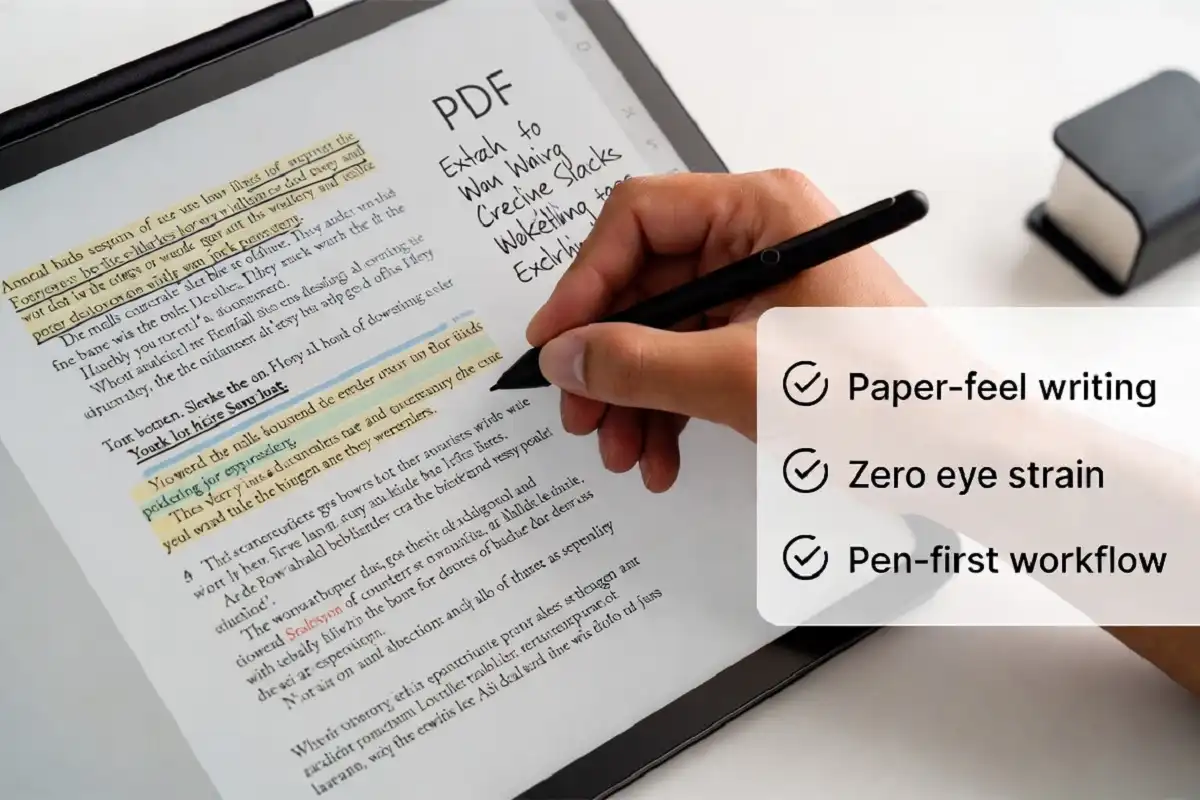
Reading and marking up PDFs on a regular screen gets tiring fast. The glow, the glare, and the constant scrolling pull your focus away from the content. An e ink tablet for PDF annotation is designed to remove those distractions and bring the experience much closer to working on paper.
The best e ink tablet for PDF annotation combines a large screen (at least 10 inches), a pressure-sensitive stylus, and a reliable PDF app with highlight, underline, and freehand note tools. The reMarkable 2, Supernote A5X2, and Kindle Scribe are the most recommended options in 2026.
Why Different on E Ink Tablet for PDF Annotation
Most people assume any tablet can handle PDF annotation. That is technically true. But the experience on a standard LCD or OLED screen is very different from what you get on e ink.
E ink displays reflect light rather than emit it. This means reading feels like looking at a printed page. After an hour of annotating a dense research paper, your eyes do not feel nearly as strained.
The other major difference is stylus feel. On glass-screen tablets, the pen slides too fast and there is almost no texture. On e ink tablets, there is a slight drag on the surface that mimics writing on paper. That small difference makes a significant impact when you are annotating for hours.
Battery life is the third reason e ink wins for serious PDF work. Most e ink tablets last weeks on a single charge because the display only uses power when the screen changes. You are not draining a battery just to display a static page of text.
What to Look For in an E Ink Tablet for PDF Annotation
Screen Size
This is the most important factor. PDFs are typically formatted for A4 or US Letter pages. On a small screen, you are always zooming and scrolling, which interrupts your reading flow.
I recommend a screen of at least 10 inches. A 10.3-inch or 13-inch screen lets you view most PDFs at a comfortable reading size without constant adjustments.
Tablets with 7 to 8-inch screens can handle PDFs but work best for simple documents with large text. Academic papers, research reports, and technical manuals benefit from a bigger screen.
Stylus Quality and Pressure Sensitivity
Not all styluses are equal. For annotation, you want a stylus that supports at least 4096 levels of pressure sensitivity. This lets you vary line thickness naturally, the same way a pen responds to your writing force.
Tilt sensitivity is also useful. It allows you to shade or mark with the side of the tip, similar to using a pencil at an angle.
Check whether the stylus is included or sold separately. Some tablets require a paid add-on pen, which adds to the overall cost.
PDF App Support
This is where many e ink tablets fall short. The device hardware can be excellent, but if the PDF software is slow or missing key features, annotation becomes frustrating.
You want a PDF app that supports:
- Text highlighting in multiple colors
- Underline and strikethrough
- Freehand ink notes
- Sticky notes or text boxes
- Bookmarks and table of contents navigation
- Cloud sync for backup and cross-device access
Some e ink tablets run a locked operating system with only their own built-in apps. Others run Android and support third-party apps like Xodo, LiquidText, or Adobe Acrobat.
Storage and File Transfer
PDFs can be large, especially textbooks and illustrated manuals. A tablet with 32GB of internal storage handles most personal libraries comfortably. If you work with hundreds of files, 64GB is safer.
Check how you transfer PDFs to the device. Some tablets support USB transfer, cloud sync, email, or direct Wi-Fi. The easiest workflow depends on where your PDFs live already.
Best E Ink Tablet for PDF Annotation in 2026
reMarkable 2
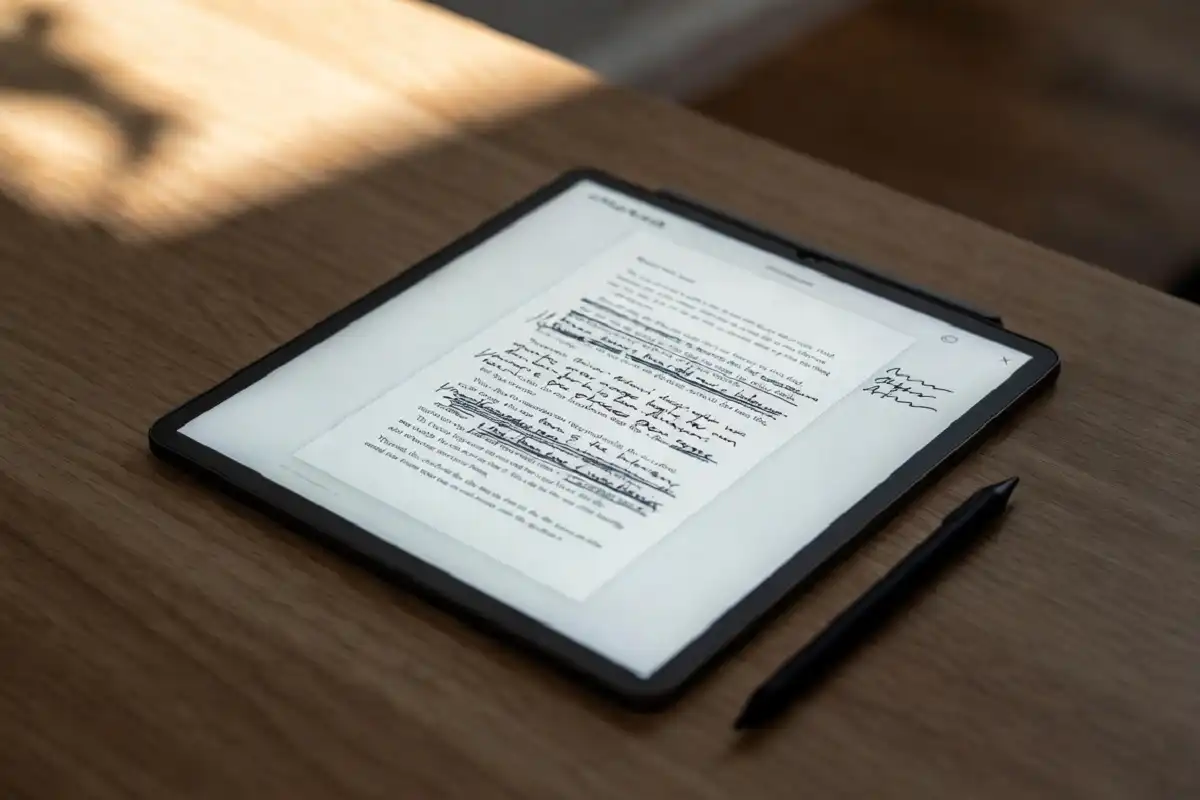
The reMarkable 2 is the most popular e ink tablet for PDF annotation among professionals and researchers. It has a 10.3-inch screen and uses a Marker stylus that provides one of the most natural writing experiences available.
The device runs its own software, not Android. This means you are limited to the built-in PDF tools. Those tools are solid but not as feature-rich as third-party apps. You can highlight text, add freehand notes, and bookmark pages.
The writing experience is excellent. The screen texture and stylus lag are carefully tuned to feel close to paper. If writing feel is your top priority, this device is hard to beat.
One limitation is the ecosystem. To unlock features like handwriting-to-text conversion and enhanced cloud sync, you need a Connect subscription. Without it, the device still works, but some workflow features are restricted.
For students, researchers, and professionals who want a focused tool specifically for reading and annotating documents, the reMarkable 2 remains a top choice. You can read a more detailed breakdown in this comprehensive reMarkable 2 review covering features and real value.
Screen: 10.3 inches Stylus: Marker (included) or Marker Plus with eraser OS: reMarkable OS (closed) Storage: 8GB Battery: Weeks per charge
Supernote A5X2
The Supernote A5X2 is built by Ratta and has earned a strong reputation for PDF annotation, particularly among academics and heavy readers.
It runs a custom OS but allows sideloading Android apps under certain conditions. The built-in PDF reader supports multi-color highlighting, freehand annotation, and a useful split-screen view that lets you take notes alongside a PDF.
The stylus system uses a felt-tip nib that wears down with use, which some users prefer for its authentic pen feel. Replacement nibs are inexpensive. The Supernote community is active and the firmware updates are frequent, which keeps the device improving over time.
The A5X2 has a 10.3-inch screen and 32GB of internal storage. Cloud sync options include Dropbox and a dedicated Supernote cloud service.
If you want strong PDF features out of the box with a more open approach to file management, the Supernote A5X2 is an excellent option.
Screen: 10.3 inches Stylus: Standard Pen (included) OS: Supernote OS Storage: 32GB Battery: Weeks per charge
Kindle Scribe
The Kindle Scribe runs on Amazon’s ecosystem and is aimed at readers who want to combine book reading with document annotation.
It has a 10.2-inch or 10.9-inch screen depending on the configuration. The Premium Pen is included with most bundles and supports erasing.
PDF annotation on the Kindle Scribe works but has some limitations. You can add freehand notes and sticky notes to PDFs, but text highlighting within PDFs has historically been limited. Amazon has improved this through firmware updates, so the current state in 2026 is better than at launch.
The Kindle Scribe works best if you are already in the Amazon ecosystem. Sending documents through Send to Kindle is simple. If you need advanced PDF features like multi-color highlighting or split-screen annotation, there are stronger options.
Screen: 10.2 or 10.9 inches Stylus: Basic Pen or Premium Pen OS: Kindle OS (closed) Storage: 16GB, 32GB, or 64GB Battery: Weeks per charge
Boox Note Air4 C (For Those Who Want Color)
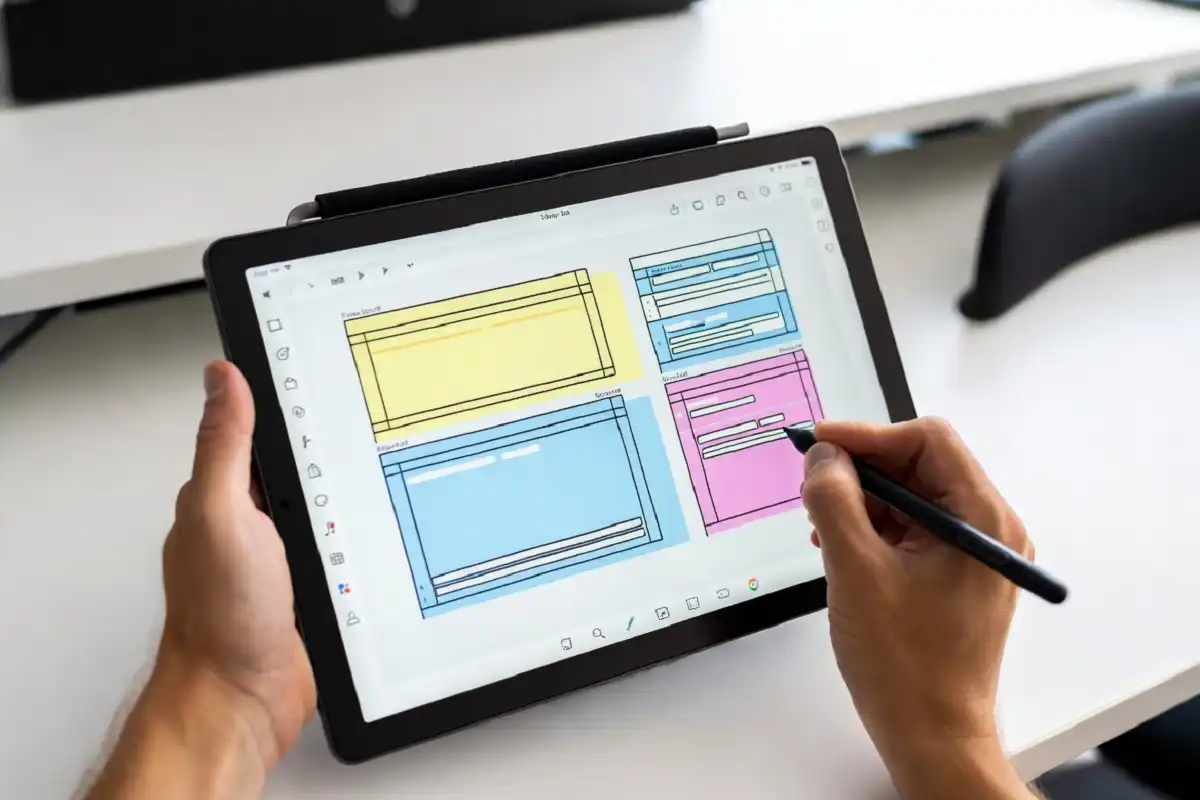
If you need color highlighting in your PDF workflow, the Boox Note Air4 C is the only e ink tablet for PDF annotation that delivers this at a reasonable price.
Color e ink displays use Kaleido technology. The color accuracy is not comparable to an LCD screen, but it is enough to distinguish between different highlight colors and view color-coded diagrams or charts in PDFs.
The Note Air4 C runs Android 12 and gives you full access to the Google Play Store. You can install Xodo, Adobe Acrobat, or any other PDF app you already use on your phone or laptop.
The trade-off is price. Color e ink tablets cost more than their black-and-white counterparts. The screen refresh rate for color content is also slightly slower, which can feel noticeable when scrolling quickly through long documents.
For medical students, law students, or anyone who color-codes their annotations heavily, the color display is worth considering.
Screen: 10.3 inches (color e ink) Stylus: BOOX Pen Plus (included) OS: Android 12 Storage: 64GB Battery: Days per charge (shorter than black-and-white e ink)
Boox Tab Ultra C Pro (For Power Users)
The Boox Tab Ultra C Pro sits at the premium end. It runs Android 13, has a built-in camera and front light, and supports Google Play apps fully.
The 10.65-inch color e ink screen is one of the best available in 2026 for reading and annotation. The processing speed is fast enough that navigation between pages in large PDFs feels responsive.
This is the choice for someone who wants an e ink tablet that can also handle light multitasking beyond PDF annotation.
Black-and-White vs. Color E Ink Tablet for PDF Annotation
Most PDFs are formatted with black text on a white background. For these documents, a black-and-white e ink tablet works perfectly and costs significantly less.
Color e ink is worth paying for if:
- Your PDFs contain color diagrams, charts, or figures that matter for understanding
- You annotate with multiple highlight colors and need to distinguish them at a glance
- You work with illustrated textbooks or medical imaging materials
For general research papers, legal documents, and novels, color adds cost and slightly reduces contrast without delivering meaningful benefits.
PDF Apps Worth Using on E Ink Tablet for pdf annotation
If your e ink tablet runs Android, you have options beyond the built-in software.
Xodo PDF Reader is one of the best free options. It supports multi-color highlighting, stamps, text boxes, freehand drawing, and cloud sync with Google Drive, Dropbox, and OneDrive. The interface is clean and works well on e ink displays.
Adobe Acrobat Reader gives you familiar tools if you already use Adobe in your workflow. It syncs with Adobe Document Cloud, which is useful if you share annotated PDFs with colleagues.
LiquidText is a strong choice for researchers. It allows you to pull excerpts from a PDF and organize them on a connected workspace. This works well for literature reviews and note-taking on complex documents.
Moon+ Reader Pro is excellent for reading EPUBs but also handles PDFs. It offers solid annotation features with a highly customizable reading interface.
Common Mistakes on e ink tablet for pdf annotation
Over-annotating the document. Highlighting every second sentence makes the annotations meaningless. I have found that limiting highlights to one or two key sentences per section forces better thinking about what actually matters.
Ignoring cloud backup. E ink tablets can be lost or damaged. Always set up automatic cloud sync through Dropbox, Google Drive, or the device’s native sync service. This protects years of annotation work.
Buying a small screen to save money. A 6-inch screen is fine for reading novels. It is frustrating for annotating academic papers. Buy the largest screen you can afford within your budget.
Choosing a device without stylus support. Some budget e ink devices are reading-only with no stylus input. For annotation, a pen is essential. Check the specs before you order.
Not testing the PDF app before relying on the device. Some closed-OS tablets have limited PDF features that are not obvious from marketing materials. Read user reviews specifically about PDF annotation workflow before buying.
E Ink Annotation vs. iPad for PDF Work
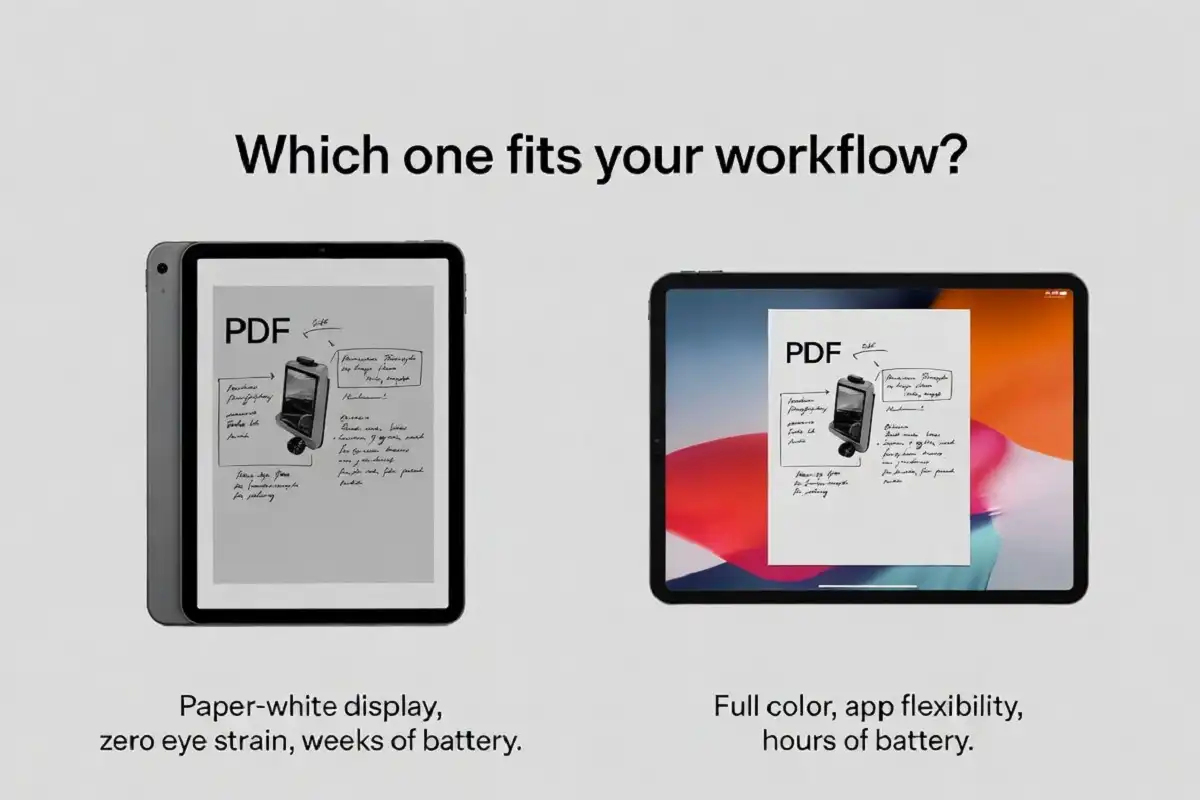
This question comes up constantly. Here is an honest comparison.
Choose an e ink tablet for PDF annotation if:
- You read and annotate for long sessions daily
- Eye strain is a genuine concern
- You want a device dedicated to reading and writing
- Battery life is critical to your workflow
Choose an iPad if:
- You need full color rendering for detailed visual PDFs
- You use a wide range of apps beyond document work
- You annotate in short sessions throughout the day
- You need to switch between documents, email, and other tools quickly
I use both. An e ink tablet handles research papers and long reading sessions. A standard tablet handles shorter tasks where flexibility matters more. If you only want one device, think honestly about how long your annotation sessions typically run.
Pairing Your E Ink Tablet With a Productivity Workflow
An e ink tablet for PDF annotation is most effective as part of a larger system. Pairing it with good note-taking habits and organization methods matters as much as the hardware.
For students, combining handwritten annotations with a structured review schedule is more effective than passive re-reading. The research on this is consistent. If you want to understand why, the connection between handwriting and how it improves learning and productivity is worth reading.
For professionals who work across multiple devices, cloud sync is essential. Your annotated PDFs need to be accessible on your laptop, phone, and tablet without manual transfers.
For researchers managing large document libraries, pairing an e ink device with a reference manager like Zotero or Mendeley keeps your annotated PDFs organized alongside citations.
If you are still deciding whether this type of device fits your needs, this guide to choosing an e ink note-taking tablet covers the decision framework in detail.
How to Organize PDFs on an E Ink Tablet
Good organization prevents frustration. PDFs stack up quickly, especially for students and researchers.
Create a folder structure before you start importing files. A simple system works best: one folder per project, course, or topic. Inside each folder, use consistent naming that includes the author and year for academic papers.
Delete old versions when you finish a document. Keeping multiple drafts of the same annotated file wastes storage and creates confusion.
Use bookmarks or internal notes to mark sections you need to return to. Most PDF readers support this and it saves significant time when revisiting long documents.
Key Takeaways
An e ink tablet for PDF annotation is the most practical choice for people who spend significant time reading and marking up documents. The combination of a paper-like display, a responsive stylus, and long battery life creates a working environment that is genuinely easier on the eyes and more conducive to focused work.
The reMarkable 2 leads for writing feel and simplicity. The Supernote A5X2 leads for built-in PDF features and open file management. The Boox Note Air4 C leads for color highlighting and app flexibility.
Screen size matters more than most buyers expect. A stylus with genuine pressure sensitivity makes annotation feel natural rather than mechanical. And reliable cloud backup protects your work so annotations are never lost.
If you are serious about reading and annotating PDFs as part of your daily workflow, an e ink tablet will improve that experience significantly over any backlit screen.
FAQs
Can an e ink tablet annotate PDFs the same way as an iPad?
For basic annotation tasks like highlighting, underlining, and freehand notes, yes. For complex visual workflows involving color, multiple apps, and rich media, an iPad provides more flexibility.
Do all e ink tablets support PDF annotation?
No. Reading-only e ink devices do not have stylus input. You need a tablet that explicitly supports pen input for annotation.
Is the reMarkable 2 good for PDFs?
Yes, with caveats. The writing feel is excellent and the PDF support covers the most common annotation needs. Advanced features like multi-color highlighting require the Connect subscription or third-party app workarounds.
What screen size is best for annotating research papers?
At least 10 inches. A 13-inch screen is ideal for A4 papers without zooming.
Can I use cloud storage with an e ink tablet?
Most modern e ink tablets support Dropbox, Google Drive, or their own cloud service. Check which services are supported before buying if cloud sync is important to your workflow.