
Introduction
Managing files efficiently is more important than ever. Whether you are a student, business owner, freelancer, or corporate professional, having access to your documents anytime and anywhere is essential. This is where Google Drive comes in.
Google Storage is one of the most popular cloud storage platforms that allows users to store, share, and collaborate on files seamlessly. With its integration across Google services and its user-friendly interface, it has become a go-to solution for millions of users worldwide.
In this comprehensive guide, we will explore everything about Google Storage —from its features and benefits to tips for maximizing productivity. If you want to understand how Drive can simplify your workflow, this article is for you.
What is Google Drive?
Is a cloud-based storage service developed by Google that allows users to store files online and access them from any device with an internet connection.
Unlike traditional storage methods like USB drives or hard disks, Google Storage stores your files securely in the cloud. This means you can access your documents, photos, videos, and other files anytime, anywhere.
How Google Drive Works
Works by storing your files on Google’s servers instead of your local device. Once you upload a file, it becomes accessible across devices such as smartphones, tablets, and computers.
Here’s how it functions:
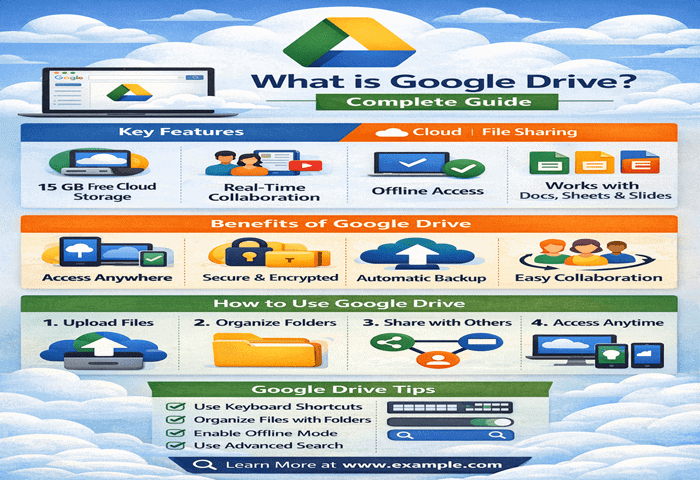
- Upload files to your Drive
- Store them securely in the cloud
- Access or share them anytime
- Collaborate in real-time with others
The synchronization feature ensures your files stay updated across all devices.
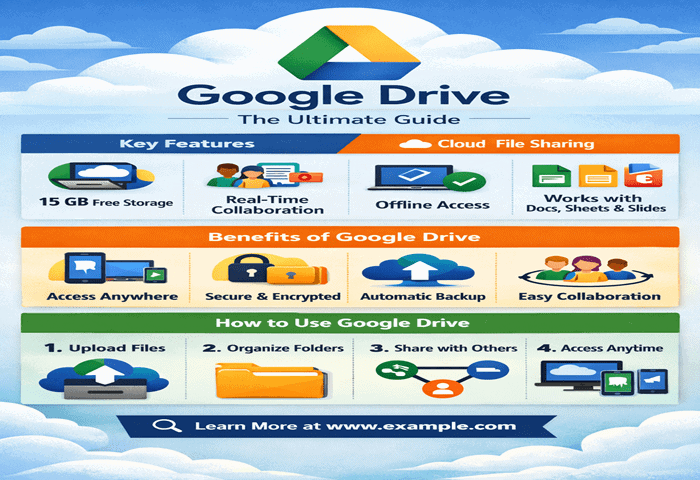
1. Cloud Storage
Offers free storage (15 GB) for every user. This storage is shared across Google Drive, Gmail, and Google Photos.
2. File Sharing and Permissions
You can easily share files with others by generating a link or inviting users via email. Permissions include:
- Viewer
- Commenter
- Editor
3. Real-Time Collaboration
Multiple users can work on the same document simultaneously. Changes are saved automatically, making collaboration seamless.
4. Integration with Google Workspace
Google Drive integrates with:
- Google Docs
- Google Sheets
- Google Slides
- Google Forms
This makes it a powerful productivity ecosystem.
5. Offline Access
You can enable offline mode to access files without an internet connection.
6. Advanced Search
Google Drive uses AI-powered search to help you find files quickly using keywords, file types, or even content inside documents.
Benefits of Using Google Storage
1. Accessibility Anywhere
One of the biggest advantages of Google Drive is accessibility. You can open your files from any device.
2. Easy Collaboration
Teams can collaborate without sending files back and forth via email.
3. Automatic Backup
Your files are automatically saved and protected from hardware failure.
4. Cost-Effective Storage
Compared to physical storage devices, Offers affordable and scalable storage options.
5. Security and Encryption
Drive uses strong encryption to keep your data safe.
Drive Storage Plans
Google offers both free and paid plans:
Free Plan:
- 15 GB storage
Paid Plans (Google One):
- 100 GB
- 200 GB
- 2 TB and above
These plans are suitable for individuals, families, and businesses.
How to Use Google Drive (Step-by-Step)
Step 1: Create a Google Account
You need a Google account to access .
Step 2: Access Google Drive
Go to drive.google.com or use the mobile app.
Step 3: Upload Files
Click on “New” → “File Upload” or “Folder Upload”.
Step 4: Organize Files
Create folders and categorize your files.
Step 5: Share Files
Right-click on a file → Click “Share” → Add email or link.
Google Drive for Business
Google Storage is widely used in business environments due to its efficiency.
Advantages for Businesses:
- Centralized file storage
- Team collaboration
- Version control
- Secure file sharing
Businesses often use Google Workspace for advanced features.
Google Drive Tips and Tricks
1. Use Keyboard Shortcuts
Save time by using shortcuts like:
- Shift + T (new document)
- Shift + S (new spreadsheet)
2. Organize with Folders and Colors
Use folders and color codes to stay organized.
3. Enable File Version History
Track changes and revert to previous versions.
4. Use Starred Files
Mark important files for quick access.
5. Use Google Drive Search Filters
Filter by file type, owner, or date.
Google Drive vs Other Cloud Storage Services
Drive vs Dropbox
- Offers better integration with productivity tools
- Dropbox focuses more on file syncing
Google Storage vs OneDrive
- OneDrive integrates with Microsoft Office
- Drive integrates with Google Workspace
Drive vs iCloud
- iCloud is better for Apple users
- Drive is platform-independent
Common Use Cases of Drive
For Students:
- Store assignments
- Share notes
- Collaborate on projects
For Professionals:
- Manage documents
- Share reports
- Team collaboration
For Creators:
- Store media files
- Share content
- Backup projects
Security and Privacy in Google Drive
Provides strong security features:
- Two-factor authentication
- File encryption
- Permission controls
- Activity monitoring
However, users should also follow best practices:
- Use strong passwords
- Avoid sharing sensitive links publicly
Google Drive Mobile App
The mobile app allows users to:
- Upload files instantly
- Scan documents
- Access files offline
- Share files quickly
Available for both Android and iOS devices.
Common Problems and Solutions
Problem 1: Storage Full
Solution: Delete unnecessary files or upgrade storage.
Problem 2: File Not Syncing
Solution: Check internet connection and refresh Drive.
Problem 3: Permission Issues
Solution: Adjust sharing settings.
SEO Benefits of Using Google Drive
While Itself is not a direct ranking factor, it supports SEO efforts by:
- Storing website assets
- Sharing documents easily
- Hosting downloadable content
Future of Google Drive
Google continues to improve Drive with:
- AI-powered search
- Smart organization
- Enhanced collaboration tools
The future of cloud storage is heavily tied to AI and automation, and Drive is leading the way.
Best Practices for Using Drive
To get the most out of Drive:
- Keep files organized
- Use descriptive file names
- Regularly clean unused files
- Set proper permissions
- Backup important data
Conclusion
Google Drive has revolutionized the way we store, share, and collaborate on files. With its powerful features, seamless integration, and user-friendly interface, it is one of the best cloud storage solutions available today.
Whether you are an individual looking for simple file storage or a business needing advanced collaboration tools, Drive offers everything you need.
By using the tips and strategies outlined in this guide, you can maximize productivity and make the most of Drive.
Final Thoughts
If you’re not already using Drive, now is the perfect time to start. It simplifies your digital life, improves collaboration, and ensures your files are always accessible.